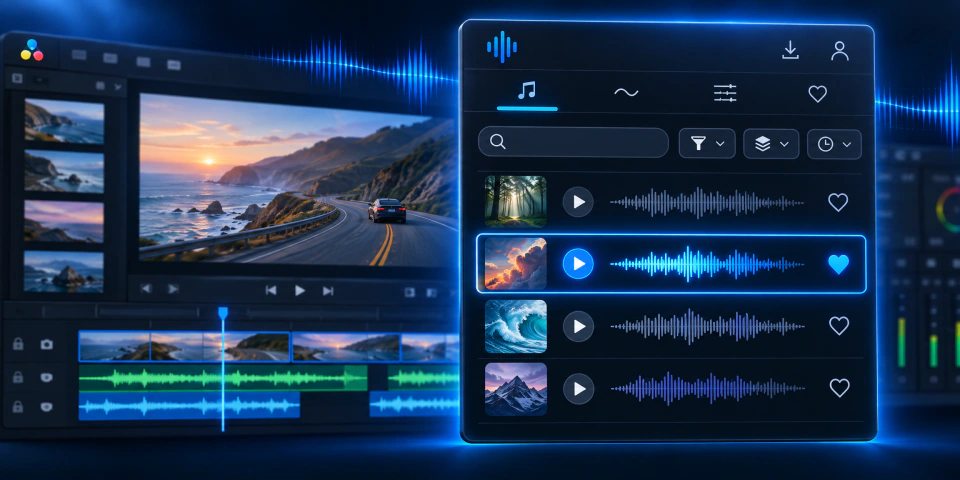
The library beside your edit
Search music, music with stems, melodies and sound effects. Save discoveries to favorites and playlists in your SoundX account.
 SoundX for DaVinci Resolve
Find music, melodies and sound effects alongside your project. Preview a sound, then place it at the playhead in your timeline.
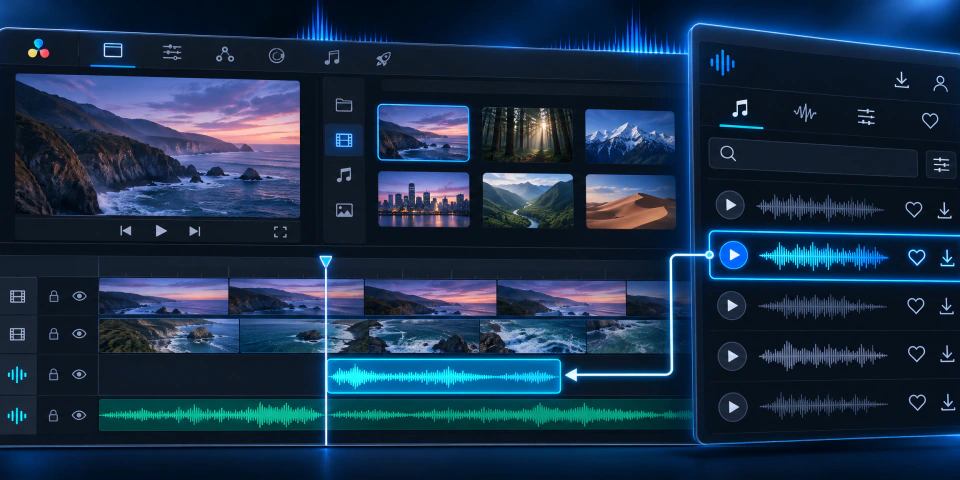
Search music, music with stems, melodies and sound effects. Save discoveries to favorites and playlists in your SoundX account.
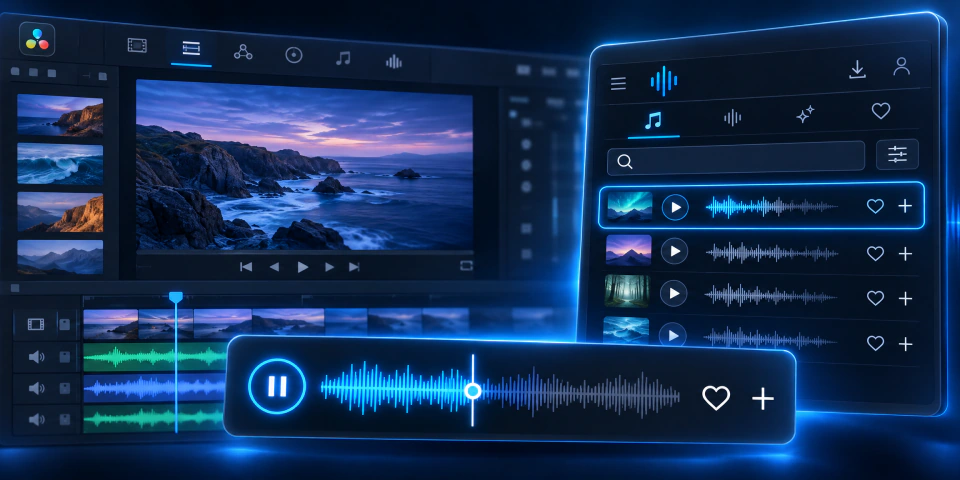
Listen before downloading. Jump to any point on the waveform to hear the exact moment you need for your edit.
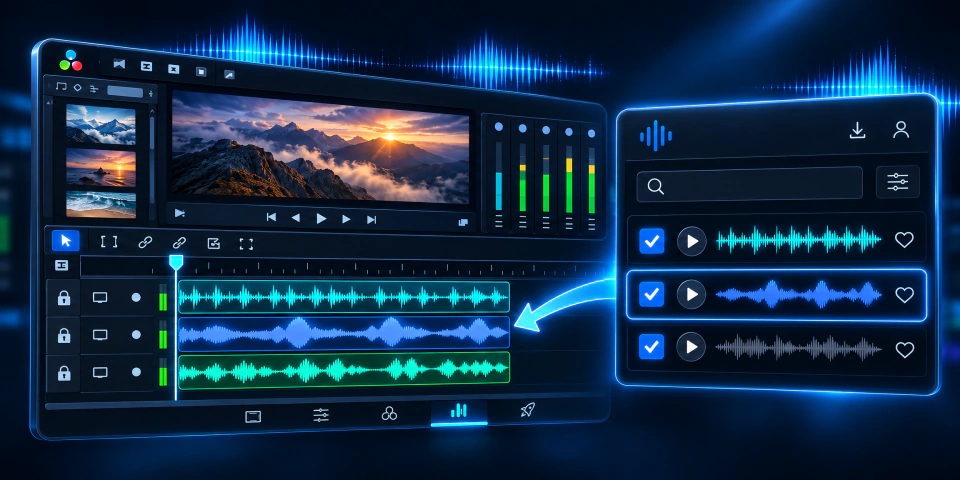
Choose the stems you need. They start together on separate tracks, ready to mix individually in Fairlight.
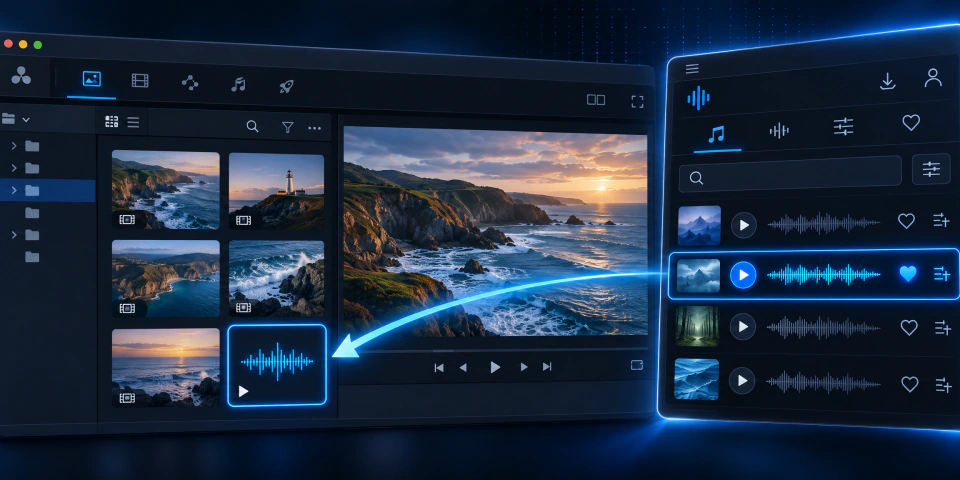
If you haven’t picked a spot in the edit yet, import the sound into the project’s Media Pool so it’s ready to use later.
Search the library and collect promising sounds in a playlist for your project.
Play a preview and choose the full file or the individual stems when available.
Place audio at the playhead in Edit or Fairlight, or send it to the Media Pool for later.
Public download is not available yet.
The macOS installer has not been released yet.
SoundX opens in a floating window beside your edit that you can pin in place.